Export the memo
On iPhone or iPad, open the recording, tap the More button (•••), choose Share, then Save to Files. On a Mac, drag the recording out of Voice Memos onto the desktop.
Voice memo to text
Voice Memos saves each recording as an .m4a file. Export it from the app, open it here, and EarScribe transcribes it in the browser with timestamps you can click to replay, edit and export.
Review the transcript before you export
On iPhone or iPad, open the recording, tap the More button (•••), choose Share, then Save to Files. On a Mac, drag the recording out of Voice Memos onto the desktop.
Tap the upload area and pick the memo from Files or Finder. The first run downloads the speech model, which your browser then keeps.
Search the text, replay anything unclear, fix names, then copy the text or export a file.
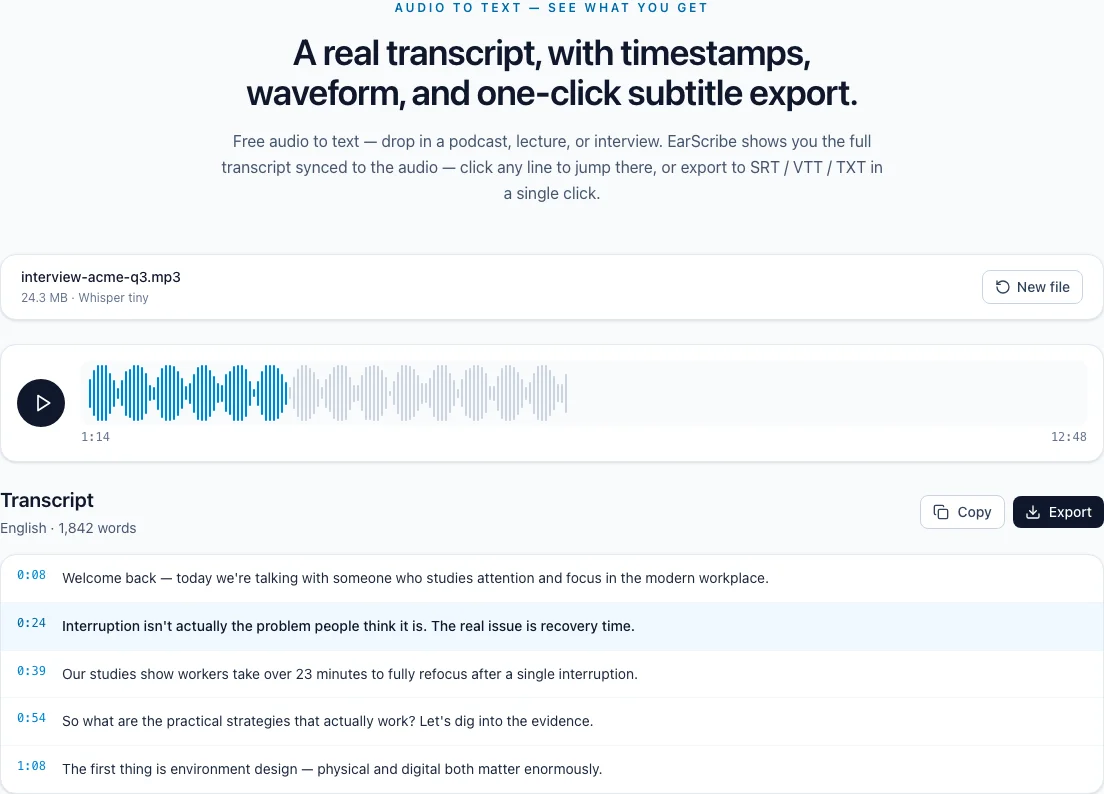
voice memo to text
Making the recording is easy; the fiddly part is getting the file out of Voice Memos in a form you can use. Here is what the export gives you and how to keep the transcript tied to it.
On iPhone and iPad, Save to Files in the Share sheet writes the memo as an .m4a file to iCloud Drive or On My iPhone, where the browser's file picker can reach it. AirDrop to a Mac works too.
On a Mac, drag a recording from Voice Memos straight into Finder, or use the app's Share button. Memos synced through iCloud appear on every device signed in to the same Apple Account.
Standard memos are AAC audio in an .m4a file. With Audio Quality set to Lossless, the same .m4a holds Apple Lossless audio and is much larger, but it doesn't improve speech recognition, because Whisper works from a 16 kHz mono copy.
The exported file keeps the memo's name, and EarScribe names its TXT, SRT and VTT exports after the file you open. Renaming the memo before you export makes the transcript easy to find later.
For notes, search the transcript for the points you need and copy the corrected text. For a video or social clip, export SRT or VTT and add it to your editor; the cue times follow the memo's timeline.
Memos are often recorded on the move. Replay anything that sounds off before sharing, especially names, amounts and dates.
Review the transcript before you export
Save to Files on iPhone or iPad, or drag from the Mac app.
Rename the memo so exports carry a useful file name.
Use Compressed quality for long memos.
Replay names, numbers and dates before sharing.
Lossless memos (Audio Quality in the Voice Memos settings) are much larger. For long recordings, Compressed is easier to process and just as good for speech.
Keep the phone close to the person speaking and don't cover the microphone at the bottom edge.
If a long memo runs out of memory, trim the silent parts in Voice Memos or split it before transcribing.
Recent versions of iOS and macOS can show a transcript in Voice Memos for some languages and devices. EarScribe is useful when you need timestamps you can export as subtitles, edits that carry into every format, or a language the built-in feature doesn't cover.
Voice Memos records .m4a files: AAC audio when Audio Quality is Compressed, Apple Lossless when it is Lossless.
Yes. Save the memo to Files, open EarScribe in Safari and choose the file. Older iPhones can be slow with larger models, so start with the recommended one.
No. The file is decoded and transcribed inside the browser tab; the only download is the speech model.