Get the audio file
Zoom's local recording already includes an audio-only M4A. Teams and Google Meet save MP4 video, so export its audio track first.
Meeting recording to text
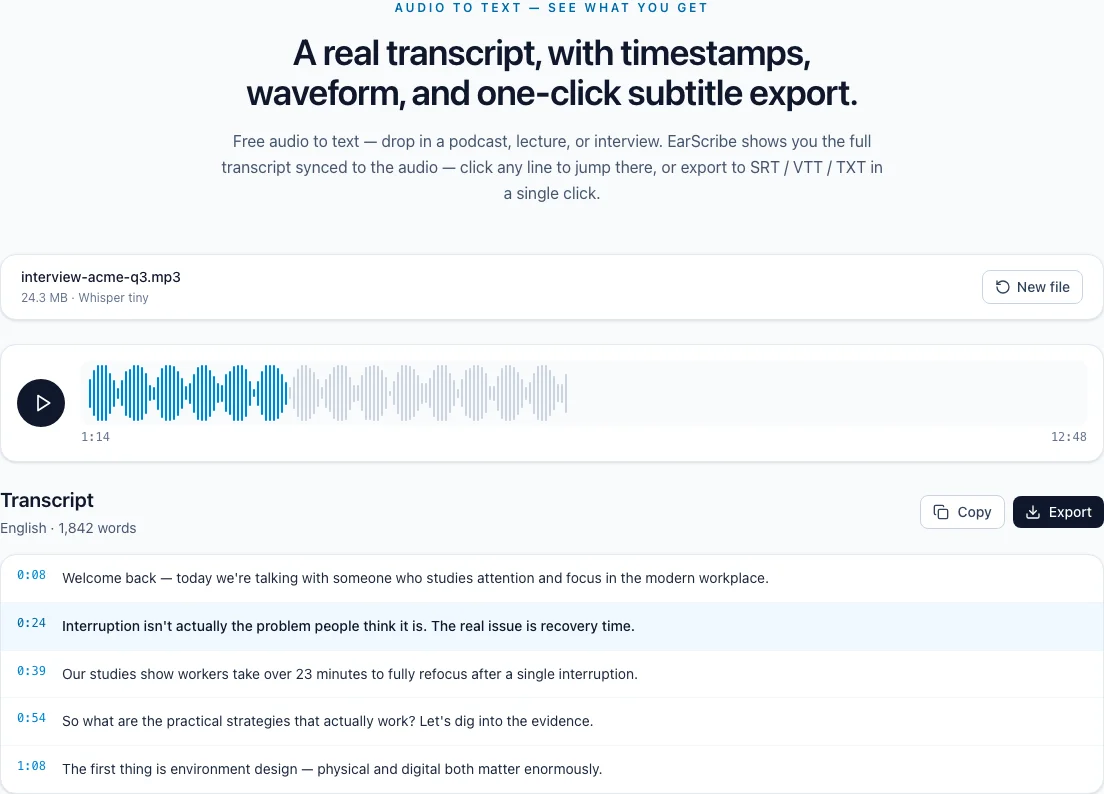
EarScribe works on the recording after the meeting, not as a bot in the call. Choose the audio file, get a timestamped transcript on your device, then search it for decisions, action items and names before you share notes.
Review the transcript before you export
Zoom's local recording already includes an audio-only M4A. Teams and Google Meet save MP4 video, so export its audio track first.
Choose the file, keep the recommended model and let the browser work. Long meetings take longer on slower devices.
Search for decisions, owners and dates, replay the moments that matter, then copy the corrected text into your notes.
meeting recording to text
Most meeting tools record video. The quickest path to a transcript is the audio track, and each platform hands it to you a little differently.
Zoom's local recordings are saved in a folder under Documents/Zoom that contains the MP4 video and an audio-only M4A; choose the M4A. From Zoom's cloud recordings you can download an audio-only file.
Microsoft Teams stores recordings as MP4 in OneDrive or SharePoint, and Google Meet saves them to the organizer's Google Drive. Download the MP4 and extract the audio before transcribing.
Search the transcript for words people use when they decide or hand out work, such as "agree", "next step", "deadline" or a colleague's name, and replay each hit to confirm the context.
Write the summary from the passages you checked. A decision paraphrased from a misheard sentence is the most common way meeting notes go wrong.
Recording laws and company policies differ, and many require telling everyone that a meeting is recorded. Transcribing on your own device avoids sending the file to another service, but sharing the transcript is still covered by the same rules.
EarScribe keeps a draft of the transcript in this browser so you can come back to it. On a shared computer, clear the site's data when you're done.
Review the transcript before you export
Use Zoom's M4A, or the audio extracted from the MP4.
Search for them and replay each one.
Confirm names and deadlines against the recording.
Remove anything that shouldn't leave the meeting.
Tell participants the meeting is recorded and transcribed, and follow your organization's recording policy.
Errors cluster where people talk over each other. Replay those passages before quoting them.
EarScribe doesn't label speakers; add names at the start of important turns while you review.
Zoom's local recordings go into a folder under Documents/Zoom that holds the MP4 video and an audio-only M4A. Cloud recordings can also be downloaded as audio only.
Both save MP4 video: Teams to OneDrive or SharePoint, Meet to Google Drive. Download the file, then export the audio. On a Mac, QuickTime Player's File > Export As > Audio Only creates an M4A; with ffmpeg, the command ffmpeg -i meeting.mp4 -vn -c:a copy meeting.m4a copies the audio without re-encoding.
No. EarScribe has no meeting bot and no live mode; it transcribes a recording you already have.
Not automatically. The transcript is one timeline; the timestamps let you jump to each change of speaker and add names.